> ## Documentation Index
> Fetch the complete documentation index at: https://support.vocuno.com/llms.txt
> Use this file to discover all available pages before exploring further.
# Using the Studio
> Mix, edit, and arrange your tracks in the Vocuno Studio — a browser-based multi-track DAW with BPM detection, beat grid, and WAV/MP3 export.
Launch Studio ↗️
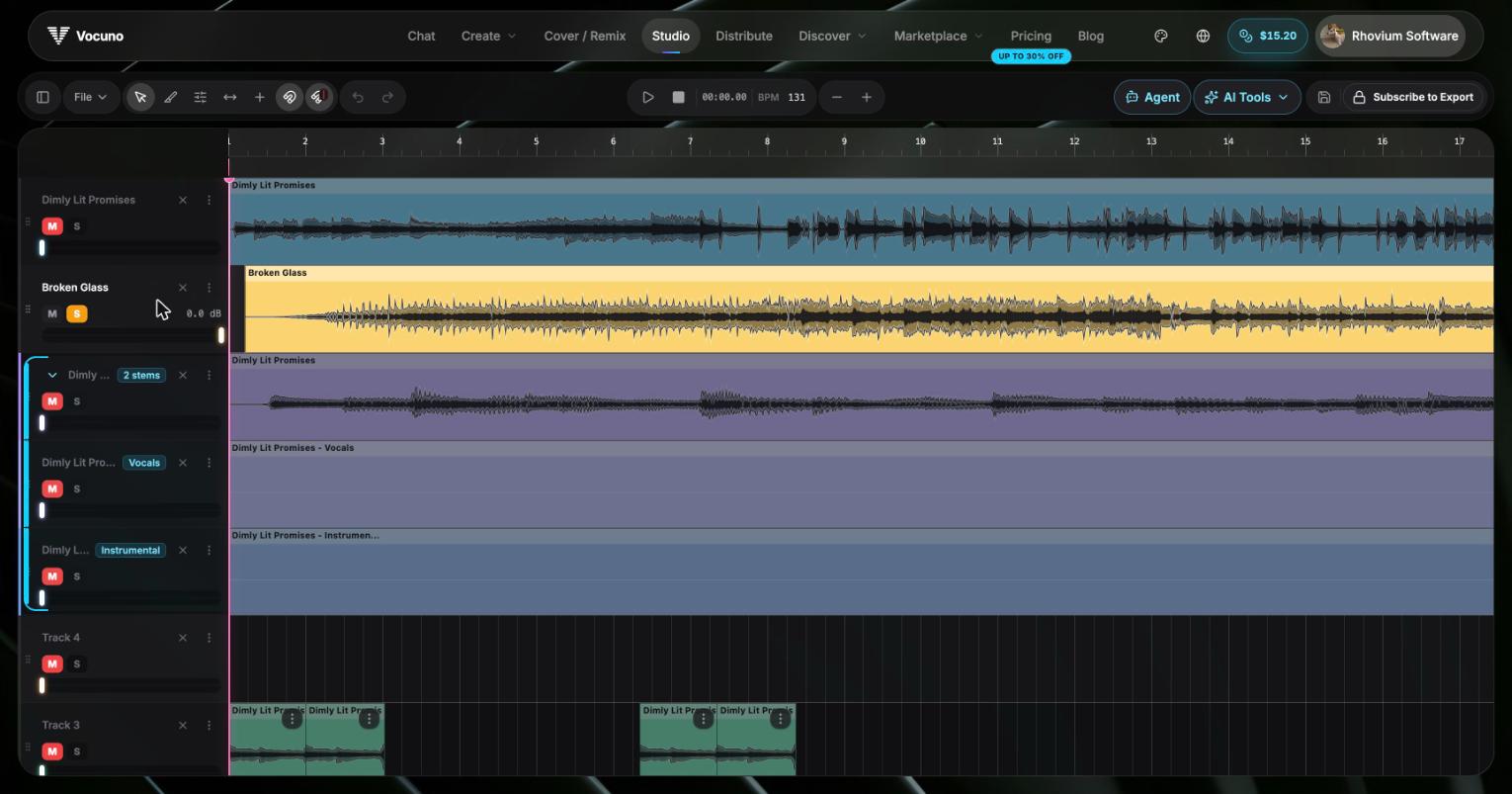
The **Vocuno Studio** is a browser-based multi-track DAW for arranging, editing, and mixing the tracks you generate. Pull in stems, vocals, and instrumentals from your library, line them up on the timeline, and export a finished WAV or MP3 — no install, no native plugins.
 ## Core features
* **Multi-track timeline** — import and arrange unlimited tracks with waveform display
* **Clip editing** — cut, copy, paste, trim, and delete regions; per-clip gain control
* **BPM detection & beat grid** — auto-detect tempo and snap edits to the bar
* **Mix controls** — per-track volume, mute, and solo
* **Library import** — drag in any generated song, stem, conversion, or capture
* **Sessions** — auto-save to Firebase with full restore (track layout, mute state, clips)
* **Undo / redo** — full non-destructive editing history
* **Export** — render to WAV or MP3 with all your mute and volume settings baked in
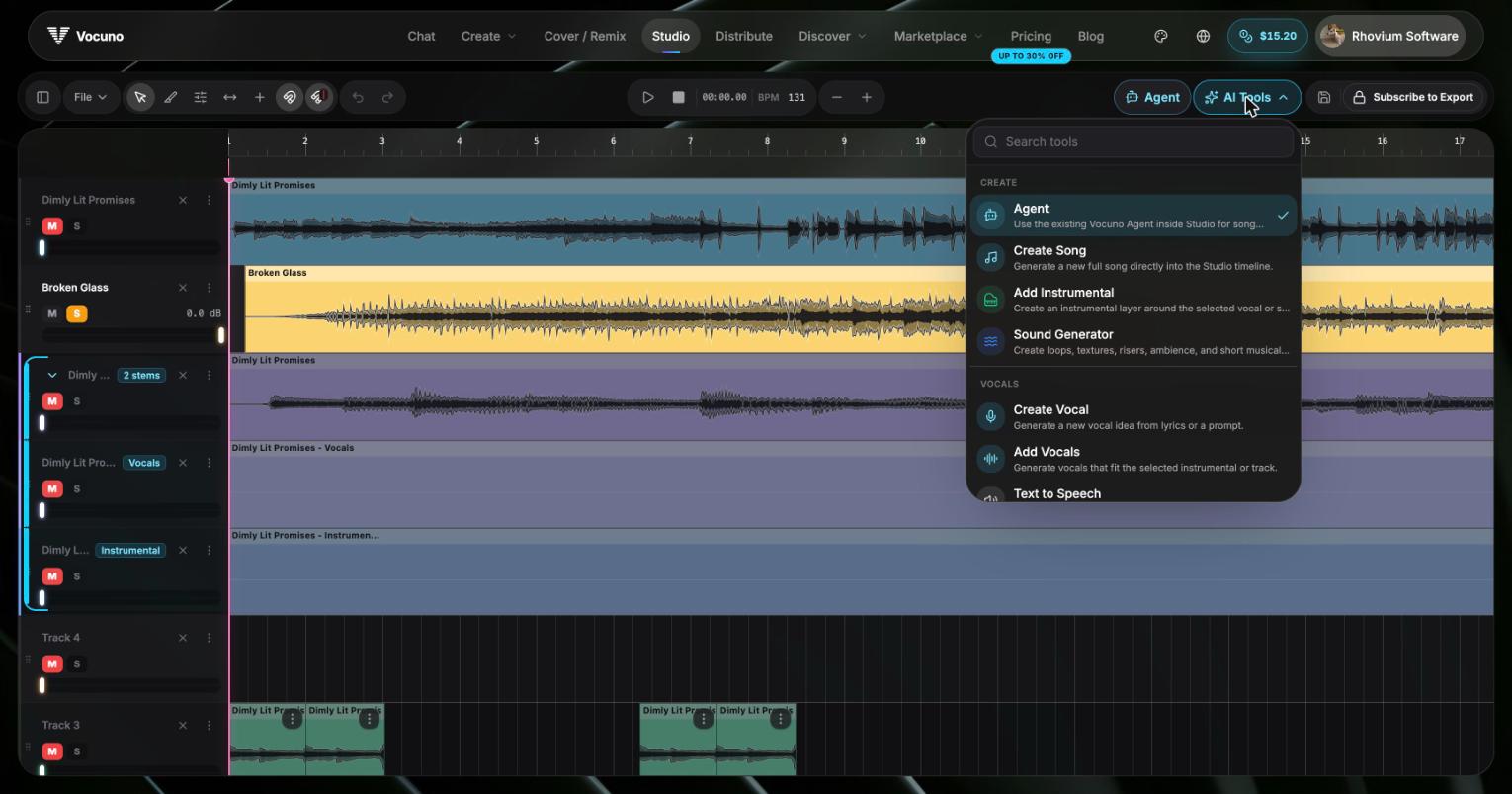
* **AI tool dock** — run advanced tools without leaving the Studio: audio mastering, the mixing agent, replace section, timestamped lyrics, stem-to-MIDI, sound generator, cover artwork, mashup, and more
## Core features
* **Multi-track timeline** — import and arrange unlimited tracks with waveform display
* **Clip editing** — cut, copy, paste, trim, and delete regions; per-clip gain control
* **BPM detection & beat grid** — auto-detect tempo and snap edits to the bar
* **Mix controls** — per-track volume, mute, and solo
* **Library import** — drag in any generated song, stem, conversion, or capture
* **Sessions** — auto-save to Firebase with full restore (track layout, mute state, clips)
* **Undo / redo** — full non-destructive editing history
* **Export** — render to WAV or MP3 with all your mute and volume settings baked in
* **AI tool dock** — run advanced tools without leaving the Studio: audio mastering, the mixing agent, replace section, timestamped lyrics, stem-to-MIDI, sound generator, cover artwork, mashup, and more
 ## Typical flow
Start a session from a finished song or a stem split, drop additional layers (extra vocals, ad-libs, effects you captured) onto new tracks, line them up on the beat grid, and trim the dead air. When the mix sounds right, export and either download the file or send it straight to [Distribution](/distribute/overview).
## Frequently asked questions
No — the Studio runs entirely in the browser. A desktop or laptop is recommended for editing precision.
Anything in your Vocuno library — generated songs, stems, voice conversions, captures — plus audio files you upload directly.
Sessions auto-save to your account. You can close the tab and come back to the same arrangement later.
WAV (lossless) and MP3. Export bakes in mute, solo, and volume settings for every track.
## Typical flow
Start a session from a finished song or a stem split, drop additional layers (extra vocals, ad-libs, effects you captured) onto new tracks, line them up on the beat grid, and trim the dead air. When the mix sounds right, export and either download the file or send it straight to [Distribution](/distribute/overview).
## Frequently asked questions
No — the Studio runs entirely in the browser. A desktop or laptop is recommended for editing precision.
Anything in your Vocuno library — generated songs, stems, voice conversions, captures — plus audio files you upload directly.
Sessions auto-save to your account. You can close the tab and come back to the same arrangement later.
WAV (lossless) and MP3. Export bakes in mute, solo, and volume settings for every track.